Adventures in Unix
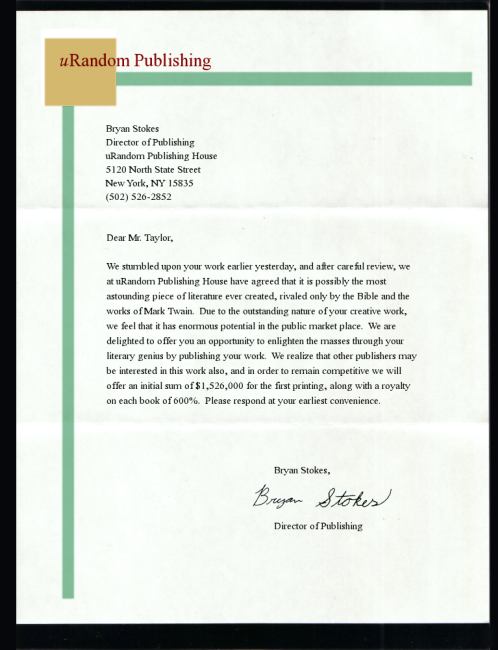
Here you can read all about the fun of configuring things!! This is such exciting and controversial reading, that I've already been approached by several publishers looking to print my works. I used to mostly use OS X, but Apple has forgotten how to build good UI and makes it slow to get work done... so, back to Linux!
Getting Blu-ray discs to play in Linux VLC
Download a KEYDB.cfg file and put it in ~/.config/aacs. Make sure the filename is upper case and the extension is lowercase: KEYDB.cfg.
Devuan Linux on Razer Blade Stealth 13 (2020)
Suspend and audio did not work with a default install. Bluetooth stopped working after upgrading to unstable from ASCII.
Suspend was fixed by adding GRUB_CMDLINE_LINUX_DEFAULT="button.lid_init_state=open" to my grub config.
After switching to unstable, s2idle became the default sleep mode, but seemed to drain faster than deep. I measured a charge loss of 26000 with 45min of deep vs a loss of 56000 with 45min of s2idle from /sys/class/power_supply/BAT0/uevent. Editing /etc/elogind/sleep.conf.d/10-elogind.conf with these values switched back to deep sleep:
AllowSuspend=yes
AllowHibernation=yes
AllowSuspendThenHibernate=yes
AllowHybridSleep=yes
SuspendState=mem standby freeze
SuspendMode=deep
HibernateMode=platform shutdown
HibernateDelaySec=300Min
SuspendEstimationSec=60min
SuspendMode=deep
Audio was fixed by installing the firmware-sof-signed package. Installing alsa-ucm-conf, alsa-topology-conf, and alsa-tools fixed the HDMI output not showing up.
The Intel AX201 Bluetooth adapter wasn't enabled until I installed bluez-tools and blueman and rebooted.
Use Gitweb, dark mode, and http repo clone.
This was a bit of an extended process to get running. I used these sites to get gitweb running. The gitweb and conf documentation was also valuable.
Getting the style to match the rest of the page was a time consuming process. I used my stylesheet first, then a copy of gitwebs. I then went through the get web stylesheet and updated it to match the dark mode look I wanted. Here's the original, my new one, and my site's base; the diff might be helpful for people trying for a similar dark mode look.
After getting it mostly working, I had this error when I tried to access code files:
Reading blob failed. Checking the webserver logs indicated this was because there was no highlighting program installed.
For some reason, color highlighting was enabled by default (on Devaun Jessie).
The error was fixed by installing the highlight package to style the source code; you could probably also disable highlighting.
I also changed the colors by getting the theme I wanted with highlight -s andes --print-style which outputs the style to highlight.css.
I wanted to use pathinfo for the pretty URLs, but getting it to work was tricky. I ended up needing to adjust the rewrite rules and also use absolute paths in the rewrite. Since pathinfo emulates a directory structure, my gitweb CSS and Javascript references also needed to be absolute.
To get cloning to work, I used the slow http method described in the Pro Git book.
Fix scroll direction in XFCE
In XFCE 4.12, using the 'Reverse scroll direction' option works in most programs, but not Gnome 3 / GTK 3 ones. This is because Gnome sucks, as usual.
After reading a bit (1 2 3 4 5), I fixed the problem by having XFCE's Application Autostart run a script in my home directory with the contents:
synclient VertScrollDelta=-25
synclient HorizScrollDelta=-25
You can query your current values with synclient | grep "ScrollDelta", then invert them to switch scroll direction.
Add dockbarx to xfce in Devuan
- Get a package to handle PPAs:
apt-get install software-properties-common -
Fix an add PPA error
aptsources.distro.NoDistroTemplateException: Error: could not find a distribution template for Devuan/ascii. Add some text to/etc/lsb-release:DISTRIB_ID=Ubuntu DISTRIB_RELEASE=10.04 DISTRIB_CODENAME=karmic DISTRIB_DESCRIPTION="Ubuntu Karmic Koala"You might need to edit this for your target distro.
-
Install the actual PPA (taken from the dockx repo):
add-apt-repository ppa:xuzhen666/dockbarx -
Add the PPA key:
apt-key adv --keyserver keyserver.ubuntu.com --recv-keys PUB_KEY_GOES_HERE - Install
xfce4-dockbarx-plugin. You might needpython-xdg.
One liner to take X11 screenshot in Linux
Install ImageMagick, then use this:
import -window root ~/Pictures/Screenshot-$(date +"%Y%m%d-%H%M%S").pngPut in a shell command and bind to PrtScr or Alt+Shift+F3 to emulate Windows or OS X.
Change MacOs X Mail.app Exchange username
Reboot first, then make backups of your account database. Should be in:
/Users/your_username/Library/AccountsMove your account database folder to new location. For example:
/Users/your_username/Library/Accounts_currentAfter the move, the Finder should keep using the moved database. So, copy the current database back to the default location. Do all edits on the unused database in the default location.
/Users/your_username/Library/AccountsUse sqlite3 to edit the database. Find the mail account you want to change.
select * from ZACCOUNT where ZOWNINGBUNDLEID='com.apple.mail';Note the account description you want to change and make sure it is the only match.
select * from ZACCOUNT where ZACCOUNTDESCRIPTION='account name';Update the username.
update ZACCOUNT set ZUSERNAME='new username' where ZACCOUNTDESCRIPTION='account name';Reboot to make the finder reload the database from the default location.
Use Let's Encrypt on Devuan Jessie.
Get certbot and put it at a resonable place. I put mine at:
/usr/local/sbinThen, as root:
#make it look like debian
ln -s /etc/devuan_version /etc/debian_version

#enable the needed mods
a2enmod rewrite
a2enmod ssl
Continue the setup process. Eventually, add a certbot cron job with a user to cron.d. For example, to run on the 24th minute:
echo "24 0,12 * * * root python -c 'import random; import time; time.sleep(random.random() * 3600)' && ./usr/local/sbin/certbot-auto renew" >> /etc/cron.d/certbotGit change single lines in staging
This uses the patch interface to select specific lines for changes. For commit:
git add -por
git add -iTo revert/reset patches from the worktree:
git checkout -por
git checkout -p somefileUse ssh keys for login
On client:
ssh-keygen -t rsa -b 2048 -f .ssh/id_rsa
ssh-copy-id username@server
If your client doesn't have a copy command, you can:
cat ~/.ssh/id_rsa.pub | ssh -e none server 'cat >> ~/.ssh/authorized_keys'Use git for regular diffs
To use git for color and word diff, add a script to your bin directory:
#!/bin/sh
NOT_IN_REPO=--no-index
COLOR_WORDS=--word-diff=color
IGNORE_ALL_WS=--word-diff-regex=[^[:space:]]  #or -w
git diff ${NOT_IN_REPO} ${COLOR_WORDS} ${IGNORE_ALL_WS} $@
Or as one line:
#!/bin/sh
git diff --no-index --word-diff=color -w $@
Find files in date range
Find files newer than first date and not newer than second date:
find . -newerct "2015-02-25" ! -newerct "2015-03-10"
Convert git repo to bare
Go to the repo location in your shell.
git config --bool core.bare true
mv .git ../NEWNAME.git`
Delete the original repo.
Combine two seperate git repos
I needed to merge two repos into one. Other people have had similar needs. The basic idea is:
Add the remote repo:
git remote add remote_branch remote_repo_location
Pull the changes into the local branch:
git pull remote_branch current_branch
Recover data on failing disk
Bottom line is use ddrescue. It will recover as much data as possible in the shortest time possible. John Gilmore has already written how to use this tool effectively. Remember, freezing your disk might let you get that last bit of data.
Also, having SystemRescueCd or (R)ecovery
(I)s (P)ossible
Linux around
for smartctl and badblocks will help. Dump the image to a USB stick
for easy use:
dd if=image.iso of=/dev/usb_device bs=1m
Make git work on a new machine
Set editor, colors, and disable idiot-proof CRLF.
git config --global color.ui true
git config --global color.branch true
git config --global color.diff true
git config --global color.interactive true
git config --global color.status true
git config --global core.editor "vim"
git config --global core.autocrlf false
Remote diff with rsync
Need to diff things over the network? Here's an 'easy' way.
rsync -n -rai --delete --size-only --exclude=".*" hostA:dirA/ hostB:dirB/ | sed 's/^>[f|d|L|D|S]+++++++++/<<<< /' | sed -E 's/^[<|>][f|d|L|D|S]\.\.\......./diff(a)/' | sed -E 's/^[<|>][f|d|L|D|S]\.\......../diff(t)/' | sed -E 's/ ^[<|>][f|d|L|D|S]........./diff(c)/' | sed 's/^\*deleting />>>> /' | sed 's/^c.........../diff /' | grep -v "^\."Replace hostA:dirA and hostB:dirB with your targets.
Here's a shell script version.
Tested with rsync 3.2.7. This should be bidrectional; let me know if it is not for you.
The version below only works on old versions of rsync
Adapted from ZuhaiBlog. This is not a bidirectional diff; you need to run it twice, swapping source and dest to find all differences. It would probably be worth using unison or csync if those tools become more widespread.
rsync -n -rvv user@server:/source/ /dest/ | grep -v "is uptodate"
Note the trailing slash on the source directory! This is needed for
recursive diffing. The double vv and grep at the end should filter out files that don't need to be synced.
Use the -c option to compare with checksums, this can be very slow for
large datasets, but actually does a diff.
A very fast option is by size only:
rsync -n -rvv --size-only user@server:/source/ /dest/ | grep -v "is uptodate"
The -n (also --dry-run) option enables dry-run, do not remove it!
Fonts too big/small in Inkscape, Gimp, and X11 in general
When using OS X, the X11 fonts seem too big sometimes. Inkscape can be really bad. You can control the font size by setting the XServer's display DPI.
Just edit /usr/X11/bin/startx and set defaultserverargs="-dpi 75".
Smaller dpi values result in smaller onscreen fonts. See
this
for details.
Command not found is slow
The package 'command-not-found' is installed by default in Ubuntu. If you type the name of an executable that is not installed, it helpfully suggests the package that supplies the command. Great... kinda.
Timings from a dual core 2.2Ghz machine (average 3x):
time ls
real    0m0.004s
user    0m0.000s
sys 0m0.000s

time not_installed_binary
real    0m0.202s
user    0m0.150s
sys 0m0.030s

time non_existant_binary_name
real    0m0.230s
user    0m0.163s
sys 0m0.047s
Timings from a 1.6Ghz netbook (average 3x):
time ls
real    0m0.017s
user    0m0.008s
sys 0m0.009s

time not_installed_binary
real    0m0.699s
user    0m0.540s
sys 0m0.156s

time non_existant_binary_name
real    0m0.701s
user    0m0.565s
sys 0m0.129s
Hey! Wow! Those timings are awful! Every time I make a typo, I pay almost a full second of doing nothing. At the time of writing, nearly every netbook uses this same processor. So why was the decision made to include this package in the default Netbook Remix install? Great recipe for frustration: slow processor, tiny keyboard, and a cost for typos. Maybe the goal is to create better typists?
Anyway, the fix is:
apt-get purge command-not-found command-not-found-dataDVI output not working when using ATI's fglrx drivers in Debian AMD64 (Black screen of death)
It seems the fglrx driver has some problems turning on the DVI connection? When X starts, I get a blank screen and my monitor goes to sleep. Here's my terrible solution. After X starts, push Alt+Ctrl+F1 to go to the first tty console- this should work on most setups. Then go back to the X console (Alt+left arrow, or Alt+F7). The monitor should now wake up. I'm using xdm, a Dell LCD, and I have DPMS turned on in the my XConfig. If the monitor goes to sleep, you'll have to do the fix again.
Using ATI's fglrx drivers in Debian AMD64
I think I needed these packages:
debhelper
module-assistant
kernel-package
xlibs-dev
xlibxtst-dev
libstdc++5
gcc
linux-headers-xxxx
Download the ati packages. Run
ati-installer --buildpkg Debian-unstable (adjust as needed- use
--get-supported).
Install the debs the installer creates.
Create the kernel module.
Run the aticonfig thing.
Be sure to disable the Composite extension in your xorg.conf
Good links: Gentoo ATI Radeon FAQ ATI Linux driver packages for Debian Debian Installation Guide ATI has some FAQs that might be useful- ATI
Can't set root background when using xcompmgr
When I first started using xcompmgr, it would replace my wallpaper with
a grey background. If I ran qiv -x someimage to set a root image I
would get this error:
qiv: Your root window's visual is not the visual Imlib chose;
     qiv cannot set the background currently.
Using the feh program instead of qiv to set the root image fixed the
problem. Maybe this is because feh links to imlib2?
Cannot ping 127.0.0.1
Silly problem. If you find yourself unable to ping localhost or
127.0.0.1, this simple thing might fix it. Install the network loopback
device. First, check if its already installed by running ifconfig as
root. If you have the loopback device installed, you should see this:
lo        Link encap:Local Loopback
          inet addr:127.0.0.1  Mask:255.0.0.0
          UP LOOPBACK RUNNING  MTU:16436  Metric:1
          RX packets:30 errors:0 dropped:0 overruns:0 frame:0
          TX packets:30 errors:0 dropped:0 overruns:0 carrier:0
          collisions:0 txqueuelen:0
          RX bytes:4416 (4.3 KiB)  TX bytes:4416 (4.3 KiB)
Ok... if you don't have that stuff, then you need it. If you have
debian, just do ifup lo. If you run some other *nix (heaven forbid
;), ifconfig lo up should do the trick. Either way, you probably want
it to be installed on every boot up- stick one of those commands in
/etc/init.d/network, or wherever your flavor keeps it's network init
script (maybe /etc/network/interfaces ).
This fixes weird problems with mozilla or firefox not being able to upload files as email attachments or whatnot. There's probably other weird things that happen if you can't ping you.
ping: unknown protocol icmp.
Hmmm... add icmp 1 icmp to /etc/protocols to fix your precious
pinging.
Apache - mod_bandwidth
This took a long time and turned out to be really simple. I wanted to
use mod_bandwidth with
Debian woody, so I added all the stuff to my httpd.conf and tested it
out. Of course, it didn't work and neither did the BandWidthDataDir
directive. After a little searching, I noticed that it was adding a line
to my apache error log (in /var/log/apache/error.log) every time I
tried getting a file handled by mod_bandwidth. The error looked like
this:
[error] (2)No such file or directory: mod_bandwidth : Can't create/access master file /var/state/apache/mod-bandwidth/master/
(followed by some numbers).
So I tried making the 'master' dir and adjusting all the permissions, but it still didn't work. After going through the error logs again, I finally noticed that the module was looking for "mod-bandwidth" and I had "mod_bandwidth" on my disk. After renaming the dir and adding a 'link' directory to it (so it contains link and master), everything worked.
Here are the additions to my http.conf
LoadModule bandwidth_module /usr/lib/apache/1.3/mod_bandwidth.so

......

<IfModule mod_bandwidth.c>
    BandWidthModule On

    #this didn't work
    #BandWidthDataDir "/tmp/apachebw"

    #this is the default
    #BandWidthPulse 1000000
</IfModule>

<Directory /var/www/music>
    #local machines have no restrictions
    BandWidth 137.112 0

    #everyone else gets 20k/s
    BandWidth all 20480
</Directory>
Enlightenment 16 - tricks/tips
Holding down alt and double middle clicking maximizes a window vertically. Nice for long text files in a terminal.
To stop Enlightenment from eating mouse clicks combined with alt: hold down ctrl, then press alt, then click the mouse button. Very handy for the GIMP.
To make a wallpaper show up after copying it to ~/.enlightenment/backgrounds, just restart Enlightenment (middle click menu or ctrl+alt+end).
Right click dragging on window borders will move the window.
Putting background images in their own directory in ~/.enlightenment/backgrounds will make them have there own sub-menu when you middle click and go to Desktop > Backgrounds.
Don't forget the alt or ctrl+middle click on the desktop to bring up the job list.
Use the programs e16menuedit and e16keyedit to configure those parts of Enlightenment.
Enlightenment will continue to update the screen during moves/resizes if you select opaque method for them; in any other move/resize method, it will lock the screen.
You can move between desktops using the mouse's scroll wheel.